
SSH works only while enough of the server is already working. If a firewall rule blocks administrative access, the network configuration is broken, the machine hangs during boot, or the operating system no longer starts, normal remote administration may disappear precisely when you need it most.
Before renting a dedicated server, verify the management path that exists outside normal production access. Depending on the provider and hardware, that may include a BMC or IPMI-class interface, browser-based KVM console, serial console, remote power controls, virtual media, a provider rescue environment, or some combination of these. The important question is not what the provider calls the feature. It is which failures you can actually recover from without waiting for physical intervention.
- Start With the Failures You Need to Recover From
- Understand the Management Layers
- BMC and IPMI-class access
- Remote console
- Rescue mode
- What to Verify Before Renting
- 1. Identify exactly what is included
- 2. Determine whether management is truly independent of production networking
- 3. Check how access is authenticated
- 4. Find out what happens if remote management itself fails
- Test Recovery Access Before Hardening the Server
- Know Which Recovery Tool to Use
- Do Not Confuse Remote Access With Hardware Support
- Keep Remote Management in the Operating Checklist
- Use a Pre-Rental Remote Management Checklist
Start With the Failures You Need to Recover From
Do not evaluate remote management as a checkbox on a server specification. Start with the situations in which ordinary SSH or application access may be unavailable.
- A firewall or routing change locks you out.
- The operating system stops responding.
- The server fails during boot.
- A kernel or system update prevents a normal startup.
- A filesystem needs offline repair.
- You need to change a boot option or select another boot device.
- The server must be power-cycled because the operating system cannot reboot it normally.
- You need a recovery environment to inspect or copy data from the installed disks.
Each scenario requires a different level of access. A portal button that sends a reboot request may solve a hung operating system, but it will not help you inspect boot output. A rescue environment may let you repair filesystems and configuration, but it may require a reboot before it becomes available. A true out-of-band console can expose the machine independently of the production operating system and its normal network stack.
This is why remote access should be treated as part of the server’s recovery design rather than as a convenience feature.
Understand the Management Layers
Providers use terms such as IPMI, BMC, KVM, remote console, rescue mode, and remote management inconsistently. They describe related capabilities, but they are not interchangeable.
| Capability | What it can provide | Typical use |
|---|---|---|
| Remote power control | Power on, power off, reset, or power-cycle functions | Recover from an unresponsive operating system |
| Remote console | Console access independent of normal SSH | Watch boot, diagnose startup failures, correct network mistakes |
| BMC/IPMI-class management | Out-of-band hardware management, status, events, and control depending on implementation | Hardware-level administration and recovery |
| Virtual media | Remote attachment of installation or recovery media | Install, repair, or boot alternative environments |
| Rescue environment | Provider-supplied temporary operating environment | Mount disks, repair configuration, copy data, reinstall or recover the OS |
| Remote hands | Physical technician intervention | Tasks that cannot be completed remotely |
A server does not necessarily include every capability in this table. What matters is whether the available combination covers your expected recovery cases.
BMC and IPMI-class access
A baseboard management controller is a management component designed to perform monitoring and control functions independently of the host operating system. IPMI defines standardized interfaces for platform-management functions such as hardware monitoring, event logging, alerts, resets, and power operations. These capabilities can remain available when the main operating system is not running.
Modern systems may also expose management through Redfish. The DMTF defines Redfish as a management standard using RESTful interfaces and a schema-based data model, with support for remote and out-of-band management. The exact features available still depend on the server and provider implementation.
For a renter, the implementation matters more than the protocol name. Ask what you can actually access. A provider may expose a full management interface, proxy selected functions through its customer portal, or keep the underlying management network private and expose only console and power controls.
Remote console
A remote console gives you visibility below the SSH layer. If the operating system stops at a boot prompt, waits for filesystem recovery, loads the wrong network configuration, or fails before starting SSH, the console may show what is happening.
Before relying on it, determine when console access becomes available. Ideally, you should be able to see enough of the startup sequence to diagnose failures that occur before the operating system’s network services start.
Also verify whether the console is persistent or session-based. Some providers require you to request temporary console credentials or activate a session through the control panel. That may be acceptable, but the procedure should be known before an outage.
Rescue mode
A rescue environment solves a different problem. Instead of controlling the installed operating system, you boot a separate environment and work on the server’s disks from there.
This can be useful when you need to:
- repair a broken network or SSH configuration;
- inspect files after the installed OS stops booting;
- repair or check filesystems using appropriate procedures;
- reset configuration or credentials through an authorized recovery process;
- copy important data before reinstalling the system;
- investigate a failed deployment or upgrade.
Do not assume that every provider’s “rescue mode” works the same way. Determine how it is activated, how credentials are delivered, whether all local disks are visible, and what network connectivity exists inside the recovery environment.
What to Verify Before Renting
The best time to discover the limitations of remote management is before the server contains production data.
1. Identify exactly what is included
Ask the provider to describe the management functions included with the specific server range and location you intend to rent.
Verify whether you receive:
- remote power on and power off;
- hard reset or power-cycle control;
- console access;
- visibility during BIOS or firmware startup where supported;
- boot-device selection;
- virtual media;
- a rescue environment;
- operating-system reinstall controls;
- hardware health or event information;
- API access if automation matters to your operation.
Do not infer one capability from another. “Remote management included” is not specific enough for an operational requirement.
2. Determine whether management is truly independent of production networking
The value of a recovery path depends on its failure independence.
If you misconfigure the public interface, firewall, routing table, or SSH daemon, can you still reach the console? If the production operating system is down, can you still issue a power operation? If the main public network is unavailable, does the provider have a separate path to the management system?
You may not receive direct network access to a physical BMC. Providers can expose management securely through their own control plane instead. The practical test is whether the recovery function remains usable when the normal server access path is broken.
This complements the broader checks in the dedicated server SLA checklist: network availability, support response, hardware replacement, and application recovery are separate parts of the incident path.
3. Check how access is authenticated
A management interface can control power, expose a console, and potentially provide access to installation media or hardware information. Treat it as privileged infrastructure.
Before production, establish:
- which account controls access;
- whether individual operator accounts are supported;
- whether multifactor authentication protects the provider account;
- how temporary console credentials are generated;
- whether credentials expire;
- who inside your organization is authorized to use recovery controls;
- how emergency access works if the primary administrator is unavailable.
Do not expose a management interface to the public Internet yourself merely to make recovery more convenient. Use the provider’s supported access model and restrict administrative access wherever the service allows it.
4. Find out what happens if remote management itself fails
Out-of-band management reduces dependency on the host operating system, but it does not eliminate every failure.
The management controller can become unreachable. The provider portal can have an incident. A console session may fail to launch. A physical problem may require someone in the data center.
That is where the provider’s intervention process becomes part of the design. Know how to escalate from self-service recovery to physical assistance. The dedicated server remote hands checklist covers the task scope, authorization, evidence, escalation, and pricing questions to settle before physical intervention is required.
Test Recovery Access Before Hardening the Server
Do not wait for the first lockout to test the console.
During initial deployment, verify the recovery path before making changes that could remove normal access. This should happen before aggressive firewall hardening, network reconfiguration, major kernel changes, or production cutover.
A practical acceptance test is:
- Confirm normal administrative access to the server.
- Open the provider’s management or recovery interface.
- Verify that you are operating the correct physical server.
- Confirm that console output is available if the service includes a console.
- Verify the documented power controls without performing an unsafe shutdown of a running workload.
- Document how rescue mode is activated.
- Confirm who can access these functions from your organization.
- Record the provider escalation path if the recovery interface is unavailable.
The dedicated server deployment checklist places this verification early in deployment for a reason: a firewall typo should be a recoverable configuration error, not an emergency ticket.
Know Which Recovery Tool to Use
Remote management is most useful when operators know which path matches the failure.
| Failure | First recovery path to consider |
|---|---|
| SSH configuration error | Remote console or rescue environment |
| Firewall locks out administration | Console or rescue environment independent of the affected network path |
| Operating system hangs | Console for diagnosis, then controlled reset or power operation if required |
| Boot failure | Remote console, followed by rescue environment if repair is needed |
| Filesystem or configuration damage | Rescue environment and tested backups |
| Suspected physical hardware failure | Provider support and hardware diagnostics |
| Management interface unavailable | Provider support or remote hands |
| Server cannot be recovered in time | Disaster recovery onto replacement infrastructure |
Remote management should shorten diagnosis, but it should not encourage endless troubleshooting of a machine that cannot meet the required recovery time.
If the server has suffered a failure that cannot be repaired within your operational target, switch to the documented recovery process. The dedicated server disaster recovery plan covers the larger sequence of obtaining replacement infrastructure, restoring configuration and data, validating the workload, and returning traffic to service.
Do Not Confuse Remote Access With Hardware Support
Having access to a BMC, console, or rescue environment does not make you responsible for repairing provider-owned physical hardware.
If a DIMM fails, a drive reports a physical fault, a power supply fails, or a motherboard becomes unreliable, the provider normally controls the physical intervention on rented infrastructure. Your responsibility is often to detect the problem, gather appropriate evidence, open the correct support request, protect the workload, and verify service after the intervention.
The exact boundary depends on the rental agreement and support plan. A managed service may include more diagnosis and operating-system work, while an unmanaged server may leave most work above the hardware layer to you. The distinction is covered in Managed vs Unmanaged Dedicated Servers.
Before an incident, document who owns each stage:
- detecting the failure;
- diagnosing hardware versus software;
- opening the provider ticket;
- authorizing physical intervention;
- replacing hardware;
- repairing the operating system;
- restoring data;
- validating the application;
- returning the service to production.
A provider can complete its hardware obligation while your application remains offline. Remote management helps bridge that operational gap, but it does not remove it.
Keep Remote Management in the Operating Checklist
A recovery interface tested on deployment day can still fail to help a year later if nobody maintains the surrounding access process.
Include remote management in routine operational reviews. Confirm that authorized operators still have access, account security remains appropriate, provider procedures have not changed, and the documented server identifier still matches the system.
Also review recovery access before risky maintenance. If a kernel update, network change, storage operation, or firewall modification could prevent normal access, verify the fallback path before starting the work.
This fits naturally into the dedicated server maintenance checklist: recovery mechanisms should be checked as operational dependencies, not remembered only after an outage begins.
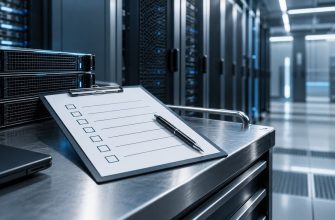
Use a Pre-Rental Remote Management Checklist
Before committing a production workload to a dedicated server, confirm the following:
- Console: Can you access the machine when SSH and the production network configuration are unavailable?
- Power: Can an authorized operator remotely power-cycle or reset an unresponsive machine?
- Boot: Can you observe or control enough of the boot process to diagnose startup failures?
- Rescue: Is there an independent recovery environment, and how is it activated?
- Storage access: Can the rescue environment access the installed disks when recovery requires it?
- Authentication: Who can use management functions, and how is that privileged access protected?
- Independence: Which production-server failures can occur without taking the recovery path down with them?
- Escalation: What happens when self-service management does not work?
- Physical intervention: How do you request remote hands or hardware replacement?
- Recovery limit: At what point do you stop repairing the original server and activate disaster recovery?
Remote management is valuable because it changes a class of failures from “the server is unreachable” into diagnosable and potentially recoverable incidents. But the label on the product page is not enough. Verify the actual console, power, rescue, authentication, and escalation paths before production, then test them while the cost of discovering a limitation is still low.